Your scene, arranged visually
Move, resize and crop sources; edit their properties and filters; keep reusable scenes for starting, gameplay and breaks.
 ForgeCaster
 Broadcast · Windows Desktop
Arrange gameplay, cameras, artwork, browser sources and your avatar in one local production workspace. Stream or record with scene, source and audio controls close at hand.
Free local broadcasting needs no account, subscription or card. Cloud music requests, audience events and other connected tools have separate plans.
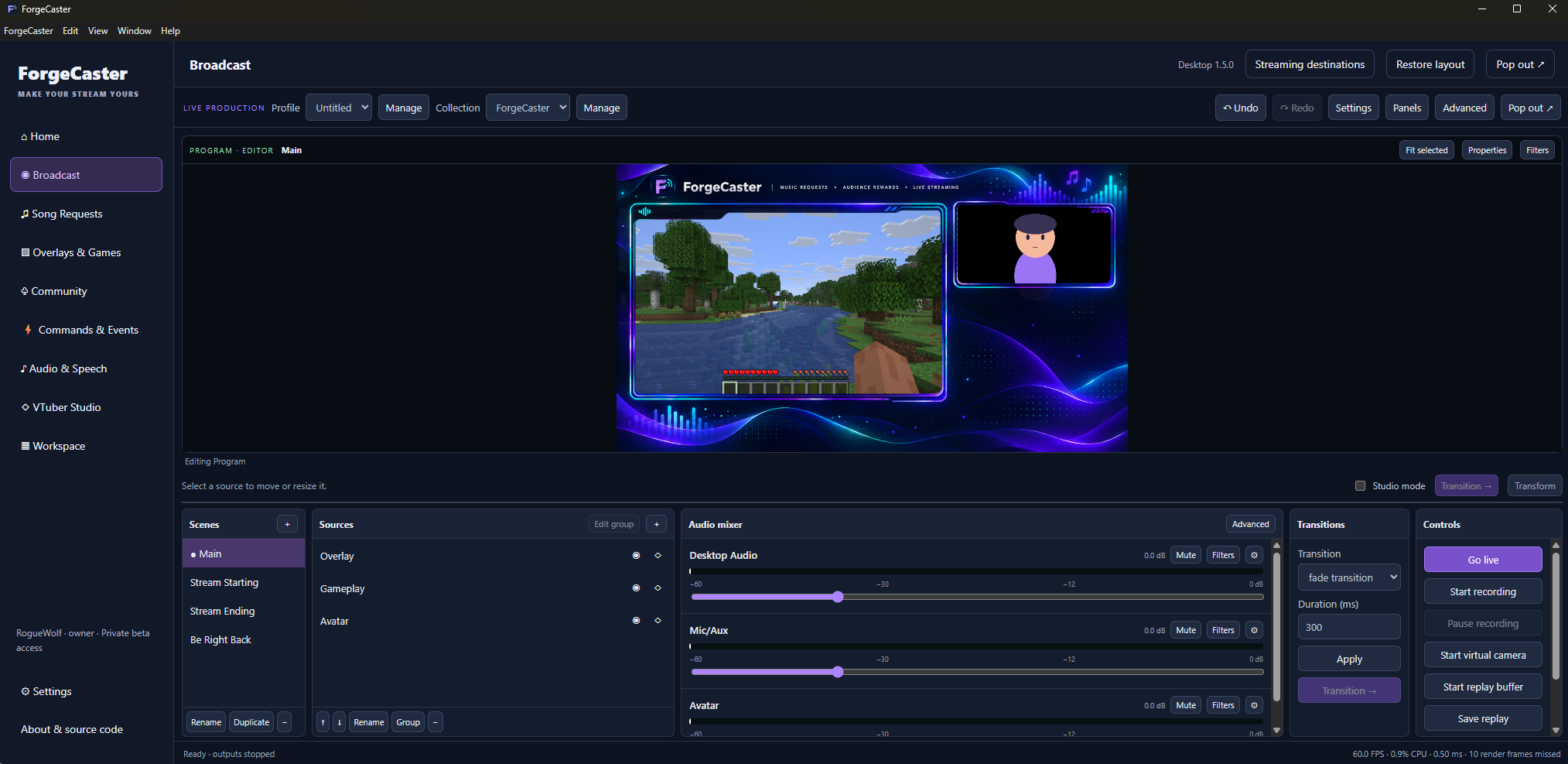
Move, resize and crop sources; edit their properties and filters; keep reusable scenes for starting, gameplay and breaks.
Use Studio mode to edit Preview, then intentionally transition it to Program. Check a local recording before trusting a new source or audio setup live.
Record locally, start supported streaming destinations, or send video through the virtual camera. Additional encoders and outputs use your computer’s resources.
For a separate OBS output profile, open Profile → Manage → Import OBS profile (basic.ini). This preserves your existing active profile and does not import stream credentials. Scene collections and profiles are different exports; neither promises identical behavior for every third-party plugin.
Open VTuber Studio in the same sidebar. Choose or import an avatar, start the intended tracking devices and test expressions or idle motion. Add its private local source to Broadcast, then check framing and transparency. The computer rendering the avatar must stay running.
With Studio mode enabled, make scene adjustments in Preview and use Transition to publish them to Program. Opening another Desktop page should preserve active outputs; check the output status before closing the app. If a local engine connection is lost, read the recovery status before starting another output.
A browser or calling application can retain the virtual-camera module after ForgeCaster closes. If the updater identifies a file holder, close that application and retry. The updater verifies existing files, creates a restore point and reports replacement failures; keep its log if recovery needs support.
Check your actual capture devices, DPI, GPU, encoder, audio mix and destination. Imported plugins and third-party virtual devices can behave differently from built-in sources. Save the scene collection and retain your original media files.
Settings → About & source code opens the matching source archive and license information. See connection and recovery help for delayed actions, audio issues and installation problems.